
Geography and Photos
Use geographical data in Landscape to display areas, lines, and points on a map. These mapped objects have distinct data fields that are separate from the Portfolio records or work items to which they belong. Any mapped object can also host one or more photos.
Mapping in Landscape is context-specific, meaning you can't upload or edit any layer from any map. Every time you are working with map data, make sure you begin with the object where that map data belongs — a Property record for property boundaries, a Site Visit work item for site visit points, etc.
Jump to...
Geography attributes
Geography attributes in Landscape are data fields that belong specifically to that map object, rather than to the record or work item where that object was added. In a typical GIS system, a shapefile can have as many attributes as needed. In Landscape, the attributes of all geography are fixed. The editable attributes available to all geography in Landscape are Name, Map Label, Map Item Status, Map Item Type, and Description. These are also the only attribute fields that can be imported to a map in Landscape.
The Status and Type field values come from a dropdown list that is configured in Settings.
The Name, Map Label, and Description fields are text values.
Read more about importing geography HERE.
Read more about customizing the dropdown fields in Landscape HERE.
Mapped objects in Landscape also have calculated attributes which belong to that particular shape: latitude and longitude for a point, length for a line, and area/perimeter for polygons/areas. These attributes cannot be edited.
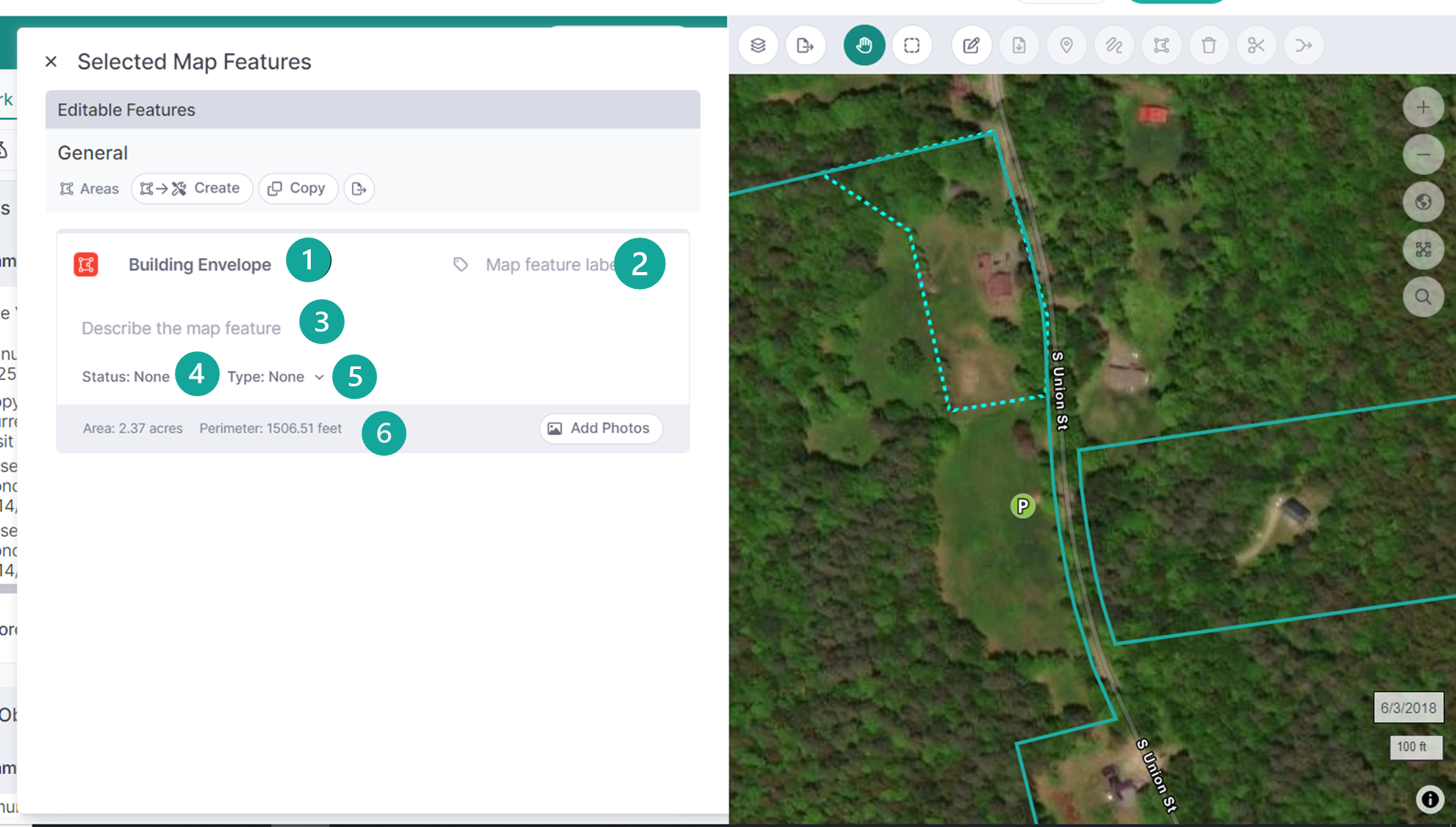
Add one or more photos to any geography by selecting the map feature and clicking Add Photos in the 'Selected Map Features' window.
Photo Attributes
Any geography (mapped) object in Landscape can contain one or more photos. Each photo has its own editable attributes: Photographer, Taken On (Date), Description, Status, and Direction (Degrees).
The Photographer field value picks from your list of Contact records.
The Status field value comes from a dropdown list that is configured in Settings.
The Direction and Description fields are text values, while the Taken On field is a date value.
The Photographer, Direction, and Taken On fields will automatically populate if the photo was taken with the Landscape mobile app.

Frequently Asked Questions
Q: Is a "photopoint" a geography object or a photo object?
A: A photopoint is a geography object. When you import geotagged photos into a points layer, or take photos in the mobile app, Landscape uses the geographic metadata of each photo to create mapped points. Each point then contains the uploaded photo.
Note that geography Description and photo Description are different: the first describes the point on the map, while the second describes the photograph. When you are using the mobile app and click 'Describe' to add a caption, you are editing the photo Description.
Q: Why doesn't the photo in my Attachments list have these attribute fields?
A: A photo is NOT the same thing as an Attachment. Photos must be uploaded to a geography item to display and edit these attributes. Photos which are uploaded via the Add Data > Add Attachment workflow will be treated as files, and will not have the same attributes as photos that are uploaded to mapped items.