
How to set map layer visibility and defaults
Every map in Landscape can show a mix of layers — basemaps (like Aerial or Street), record-specific, Work Items, and your account's Custom layers. Which of those layers are turned on is not decided fresh every time you open a map: your choices are remembered per user, and Administrators can set what's on by default for everyone.
Jump to…
Setting default layers (Administrators)
How layer visibility works
When you turn a layer on or off on any map, Landscape remembers that choice for you and applies it everywhere you view a map going forward.
For example: if you turn off "Custom Trails Layer" while looking at a Property record's map, it will also be off the next time you view any other record's map, and on the Portfolio and Project dashboard maps, until you turn it back on.
This preference is personal to you. If a teammate turns off a different layer — or turns "Custom Trails Layer" back on — it has no effect on what you see. Each user's layer visibility is independent.
Layer visibility vs. record styling
Turning a layer on or off controls whether that layer's data shows up on the map at all. It's a separate setting from styling (colors, line weights, and 'Style By' rules). For more on styling, go HERE.
Setting default layers (Administrators)
Administrators can choose which record-specific layers, Work Item layers, basemaps and Custom layers are turned on by default for the whole account.
- These defaults apply to any user who hasn't yet set their own preference for a given layer.
- Once a user manually turns a layer on or off, their personal choice takes over for that layer going forward — the Admin default no longer applies to them for that specific layer.
- Changing a default does not retroactively change what's visible for users who've already set their own preference for that layer.
Prerequisites
You must be an Administrator to configure default layers.
How to set default record-specific and Work Item layers
- Navigate to Settings > Map Layers > Map Layer Styles.
- Use the checkboxes next to each layer to change their default visibility. A checked box next to a layer means it will show by default.

How to set default basemaps
- Navigate to Settings > Map Layers > Map Layer Styles.
- In the Default Basemap section, choose a basemap from the dropdown list.
OR
- Navigate to Settings > Map Layers > Custom Map Layers.
- Click Make this the account default basemap (the world icon) next to a layer set it as the default basemap.

A note on basemap choice
Your basemap preference follows you to the list-level Portfolio and Project maps too (the tabs at the top of Landscape), the same way it follows you between individual records. If you've switched to Street or Topo on a Property map, the Portfolio and Project list maps will reflect that same choice.
How to set default Custom layers
- Navigate to Settings > Map Layers > Custom Map Layers.
-
Toggle Show this layer by default on or off for each Custom layer to set the account-wide defaults.
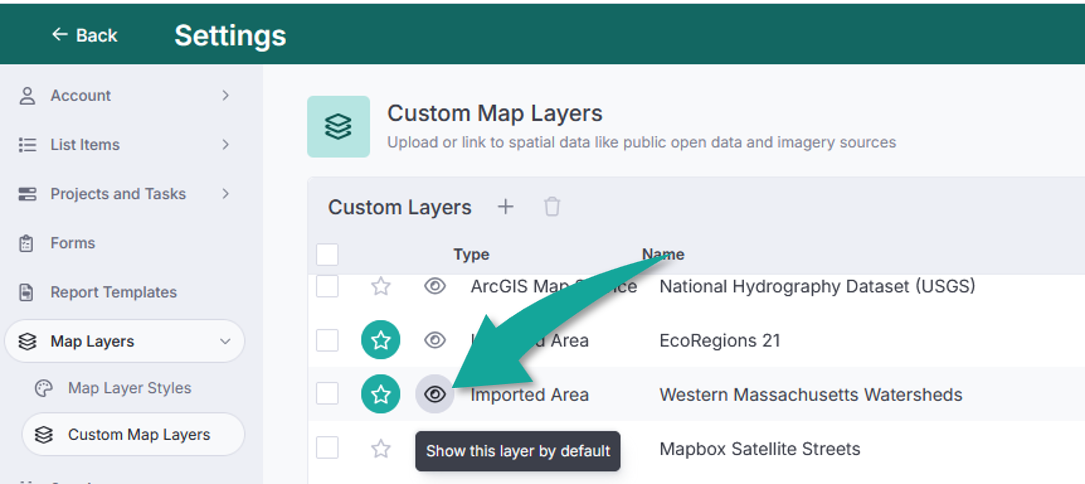
Use the "eye" icon to toggle default visibility on or off.
