
Report Templates
Reporting is an essential piece of land conservation work: from initial project approval to perpetual monitoring, and everything in between, reports are not only required but are what empower land trusts to communicate their work to others efficiently. Use Report Templates to turn blocks of your Landscape data into customized outputs that suit a variety of reporting needs.
This article describes how to create and edit Report Template Settings. For information on how to generate a report after the template has already been configured, look HERE.
Jump to...
Basic Report Editing and Formatting video
Accessing Report Templates
Browse and configure your templates from Settings > Report Templates.
You must be an Administrator to access Settings.
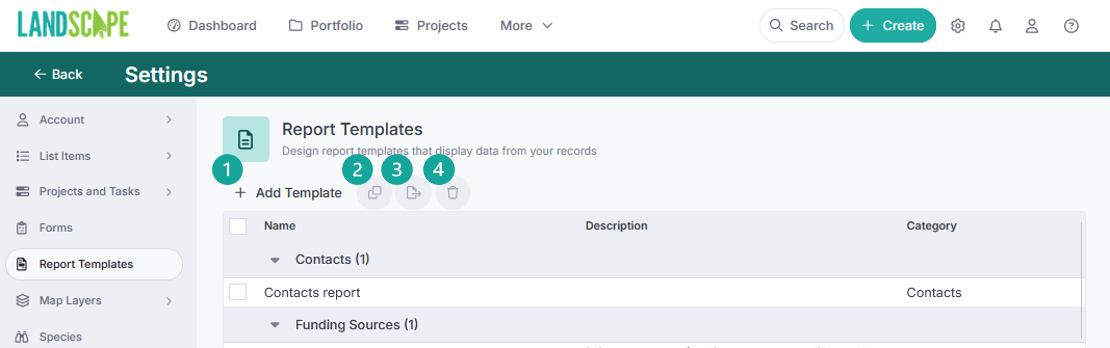
1 — Add Template from scratch, or import one that's been shared with you.
See our folder of Useful Report Templates HERE.
Read about sharing and importing templates from other Landscape users HERE.
2 — Copy template. This option becomes available when at least one template is selected via the checkbox to the left of the template name. This is a useful feature when you want to experiment with a report template before committing your changes.
3 — Export template to share it with another Landscape user, or save it locally as a backup.
4 — Delete template if you no longer need it.
Click on the name of any template to open it and use the features described in this article.
Report Details
Report Details control the overall behavior of the report. These fields are displayed on the left side of the screen when you first open a template, or when you close out of a content block.
| Setting | Description |
|---|---|
| Name | The template's name, as it appears in the list of available reports. |
| Description | Explains what the report does. Shown in Settings > Report Templates. |
| Category | The source this template is designed to run from (e.g., Portfolio Records, Projects, Site Visits). See How report template categories work. |
| Report Type |
A customizable classification that gets applied to the resulting Report item once it's generated — the generated Report item takes on whichever Type is set on the template that created it. Customize your list of Report Types in Settings > List Items > Work Items > Reports. |
| Report Naming Convention | A pattern for auto-naming each generated report. See Report Naming Conventions. |
| Create Separate Reports for Each Source |
When set to Yes, generates one report per matching record instead of combining them into a single report. When set to No, generates a single report listing all matching results. A Header Content block is only available when this is set to No. |
| Sort Results On | The field results are ordered by within the report, if more than one result exists. |
| Sort Ascending | Whether results sort ascending (Yes) or descending (No). |
| Insert Page Numbers When Exported to PDF | Adds page numbers to the PDF export. |
How Report Template Categories Work
Every report template has a Category that tells Landscape what kind of record the template is designed for — Site Visits, Projects, Baseline Reports, and so on. That Category determines where the template shows up when you go to run it:
- From the matching work item itself — if you're inside a Site Visit and click Run Report, you'll only see templates categorized for Site Visits. Landscape already knows which record to use, so the report runs immediately.
- From the parent record's Details page — if you click Run Report from the Property itself, you will be able to generate content from items within that Property. You can also generate templates categorized for that Property's child work items (like Site Visits), even though you're not inside one of them specifically. If this is what you're trying to do, Landscape will prompt you to choose a Work Item to merge before it can generate the report.
- From Data Viewer — if your View's data type matches the template's Category (e.g., a view of Site Visits), you can select a single row and run the report directly from there, the same way you would from inside the work item itself. Leave all results un-selected to generate the report for each result, or to generate a single report with multiple results as determined by the template's Create Separate Reports for Each Source setting.
So the same template — say, "Annual Monitoring Report" — can be run three ways: directly from inside the relevant Site Visit, from the Property's Details page (where you'll pick which site visit to use first), or from a Data Viewer view of matching records.
Content Blocks
General Behavior
Add a content block by clicking on the + (plus) icon on the left side of the template preview.
Move a content block up or down in the template by clicking the corresponding arrows in that block's title.
Copy a content block to use or modify its settings and fields elsewhere in the same template.
Delete a content block by clicking the trash can icon on the right side of the block's title.
Basic, Repeated, Photo, and Map content blocks allow the use of merge fields. Merge fields pull in data from your Landscape record. Merge fields look like [[@Date:Long]] or [[@Parent:Field]] in the template builder, but they will be swapped for real data from your records when the report runs.

Highlight text and merge fields in Basic, Repeated, Photo, and Map content blocks to view text formatting options or open code view.
Use code view if you want to insert HTML code to format the block's content.
Click an empty space inside a Basic, Repeated, Photo, or Map content block to insert an image, add a table, start a list, or insert a divider.
Basic Content
A Basic Content block is the simplest building block in a report template. It's a single piece of text that prints once, in the spot where you place it. Use it for anything that doesn't need to repeat, like basic property details, the date of a site visit, or a letter's opening. You can also use a Basic Content block as a header if your report template is set to create separate reports for each source, or as a spacer.
The available merge fields of a Basic Content block will be related to the template's Category.
Tip: You can force a Basic Content block to start on a new page, which is useful for cover pages, letters, or any section that should stand alone.

What a Basic Content block DOESN'T do
A Basic Content block has no logic of its own. It doesn't repeat, filter, sort, or add sub-content headings. Those jobs belong to the Repeated Content block, which loops through a list (for example, every landowner on a property), can filter it (say, only contacts tagged "Landowner"), and prints the blocks inside it once per item.
The two usually work together: the Repeated block does the looping, and Basic blocks nested inside it hold the content that prints for each item.
Example: a post-visit letter. A Repeated block loops through the property's landowner contacts and starts a new page for each one. Inside it, one Basic sub-content block holds the date, address, and body of the letter, and a second holds the signature. The result: Each landowner gets their own letter, with their own name and address merged in.
Repeated Content
Use a Repeated Content block to merge data from a one-to-many relationship, such as one Property with multiple contacts, or one Work Item with many time entries. The block prints a copy of its content for each item in the list.
Repeated Content blocks are configured by a list of settings:
| Setting | What it does |
|---|---|
| Choose which list of items to repeat on | The list the block loops through, such as Primary Record > Active Contacts. The block prints once for each item in the list. |
| Filter the list to only certain items | Limits which items print, for example only contacts tagged "Landowner." |
| Sort items | Choose the field to sort by, and whether to sort ascending or descending. |
| Try to ensure the non-repeating heading content is on the same page as the repeating content | Landscape tries to keep the block's heading on the same page as the repeated items, so it isn't left alone at the bottom of a page. |
| Remove the entire block when the list is empty | If the list has no items, nothing from this block prints. |
| Force a new page before the content of this block | Starts the block on a new page. |
| Force a new page for every item in the list | Starts each item on its own page, for example one letter per contact. |
| Use nested content blocks to represent the repeating content | Lets you build what prints for each item out of other content block types instead of a single text area. |
| Flow the repeated content horizontally across the page | Prints the items side by side instead of one below another. When this option is selected, you will be able to choose a separator to insert between repeats (Comma, Semi-colon, or Space). |
Choose the repeating data type, then build the content that prints for each item. Like in a Basic Content block, you can use merge fields to pull in data from your Landscape record. Merge fields in a Repeated Content block refer primarily to the data type being repeated.
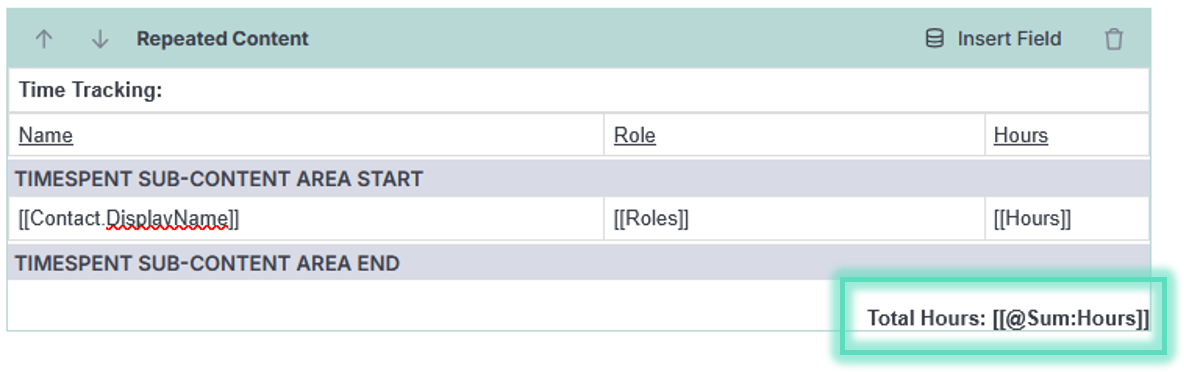
Repeated Content headers and footers can display summarized or aggregated merge fields related to its data type. For example, a Repeated Content block of Time Spent can include a field for the sum of all hours found in the list.
Showing all records on a single map
If a Repeated Content block includes a nested Map Content block, that map behaves the same way by default: one map per list item. A monitoring report covering three site visits, for instance, would normally print three separate maps — one per visit.
You can instead configure a repeated block's map to aggregate, so every item's geography — points, tracks, and polygons — is drawn onto a single combined map instead of a separate one for each. This is especially useful for reports covering multiple site visits over a season, where seeing everything on one map is more useful than paging through several.
For a worked example of this in the multi-visit monitoring context, see Running a report for multiple site visits.
Photo Content
A Photo Content block builds a gallery from the photos attached to the geographies (points, lines, and areas) of the source record, such as the photopoints on a site visit. By default, photos are grouped under the geography they belong to.
You can give your photos captions using text or merge fields. You only need to create the caption once; it will be the same for every photo that prints.
Photo Content blocks are configured by a list of settings:
| Setting | What it does |
|---|---|
| Filter the map features | Limits which geographies (points, lines, or areas) containing photos are included in the block. |
| Filter the photos within your map features | Limits which photos print within each of the included geographies. |
| Sort map features | Choose the field to sort geographies by (such as Name) and whether to sort ascending or descending. |
| Sort photos | Choose the field to sort photos by (such as Date) and whether to sort ascending or descending. |
| Force a new page before the content of this block | Starts the block on a new page. |
| Flow all photos together. Do not group by map feature. | Prints all the photos as one continuous gallery instead of grouping them under their geography. |
| Reset photo sequence count with each map feature | Restarts photo numbering for each geography, instead of numbering continuously through the block. |
| Include map points even if they have no photos | Includes points that have no photos attached, so they still appear in the block. |
| Remove the entire block when there is nothing to show | If there is nothing to print, the whole block is left out, including its heading. A point with no photos still counts as something to show. |
| Photos per row | Prints 1, 2, 3, or 4 photos across the page. |
| Photo alignment | Aligns the photos left, center, or right. |
| Maximum photo size | The largest width and height a photo can print at, in pixels. |
| Caption location | Places the caption at the top, bottom, left, or right of each photo. |
"My photos aren't in the right order!"
We get this question a lot! The biggest thing to remember is that the order of photos depends on both the photo and its geography. We have an article dedicated to explaining how photos are ordered in a report, HERE.
Map Content
Use a Map Content block to display the geography related to your records on a map in the report. You can give your map some context using text or merge fields.
Map Content blocks are configured by a list of settings:
| Setting | What it does |
|---|---|
| Force a new page before the content of this block | Starts the block on a new page. |
| Display heading content before the map | Prints the block's heading above the map. |
| Display a legend below the map for the visible layers | Adds a legend under the map for the layers that are showing. |
| Display photo direction arrows on points with photos | Adds an arrow to each point that has photos, showing the direction the camera was facing. |
| Layers |
Check a layer to show it on the map, or uncheck it to hide it. Layers include the record's boundary, Work Items, and any Custom layers in your organization's account. Expand a layer to style it, including by a field such as Status or Date. See Showing Map Objects in Different Colors and Running a report for multiple site visits. |
| Basemaps | The background map the layers are drawn on. You can select one. |
| Map size | Sets the height of the map, in pixels. |
Form Content
Use a Form Content block to print form responses attached to a Work Item, such as from your monitoring questionnaire. The Form Content block will print the results of ALL Forms attached to that Work Item unless you filter the results.
The only place where you can add text or merge fields in a Form Content block is in the header. All other content in these blocks comes from the Form(s) and form responses.
Form Content blocks are configured by a list of settings:
| Setting | What it does |
|---|---|
| Force a new page before the form content | Starts the block on a new page. |
| Do not show questions that have been marked as sensitive | Leaves out any question marked as sensitive in the Form Settings. |
| Do not show unanswered questions | Leaves out questions that weren't answered. |
| Do not show the question descriptions, if present | Leaves out the descriptive text on questions that have one. |
| Do not show the question current condition field, if present | Leaves out the current condition field on questions that have one. |
| Question Filter | Choose which questions print: all questions, only questions from certain sections of a specific form, or only a certain question of a specific form. |
| Text styles | Set the font formatting for different Form elements. The editor shows a preview of each style as you make changes. |
| Show response on same line as question | Prints each answer on the same line as its question instead of below it. |
| Do not show all possible options, only the chosen responses | For questions with a list of choices, prints only the choices that were selected instead of every option. |
| How do you want to layout the options | Sets how the options for choice questions are laid out: in evenly-spaced columns (1, 2, or 3) across the page, or compact (left-aligned, horizontal). |
Signature Content
Use a Signature Content block to collect a signature on a report, such as an attestation that the report is accurate. You write the text that appears with the signature, for example a statement the signer is agreeing to. You can include merge fields for the signature itself, the signer's printed name and title, and the date signed.
For how signing works when you generate a report, see Collecting staff and volunteer signatures in reports.
| Setting | What it does |
|---|---|
| Force a new page before the content of this block | Starts the block on a new page. |
| Specify a required signor |
Choose who must sign: • Don't require a specific signor: No particular person is required to sign. • The user that generates the report is required to sign: The person running the report is the only one who can sign it. • A specific user must sign: Choose the user from the dropdown that appears. Only that user can sign it. • When applicable, the designated lead on the associated record must sign: The Lead user assigned to the record the report is for is the only one who can sign. If the record has no Lead, any user can sign. |
Caution: An unsigned Signature Block in a draft report doesn't stop the report from being finalized or sent for review. If the required person hasn't signed, the report can still be finalized and saved.
Basic Report Editing and Formatting video
Here's a quick video on how to add text, fields, and other objects such as tables to your report, as well as how to format text. This video was recorded in May 2024. For an in-depth tutorial, check out this article: