Using a Custom Layer to find records within a specified area
Custom Map Layers combined with the power of Data Viewer can give you a list of records in a spatially defined area. Use this to answer questions such as:
- "How many properties do we hold in a 100-mile radius of Boston?"
- "How many violations have we identified in this watershed?"
- "Which of our active properties are in the region served by a funding source?"
This feature only works with layers that are imported directly into Landscape — it will not work for linked service layers.
Step 1: Import the designated area as a Custom Map Layer
Read this article for more information about adding the new layer: Introduction to Custom Map Layers. If you're looking for a radius around a specified point, use GIS or free online tools to create your desired shape (e.g., a 100-mile circle around a city).
Make sure that your file is an area file (a polygon) instead of a line file, or else your import will not save. Read more here about what this means and ways to convert a line file to an area file.
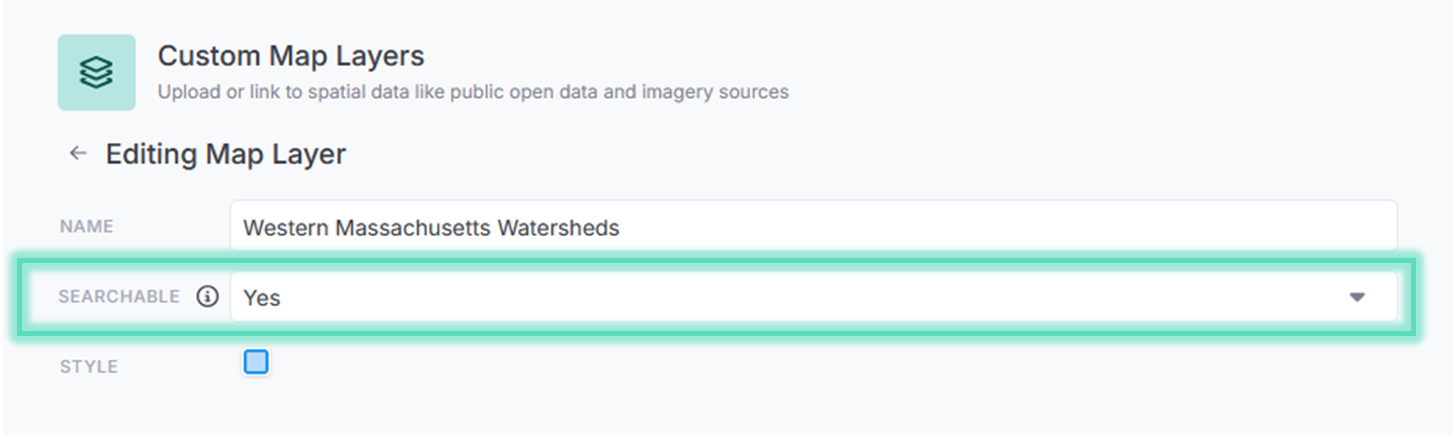
Set 'Searchable' to Yes.
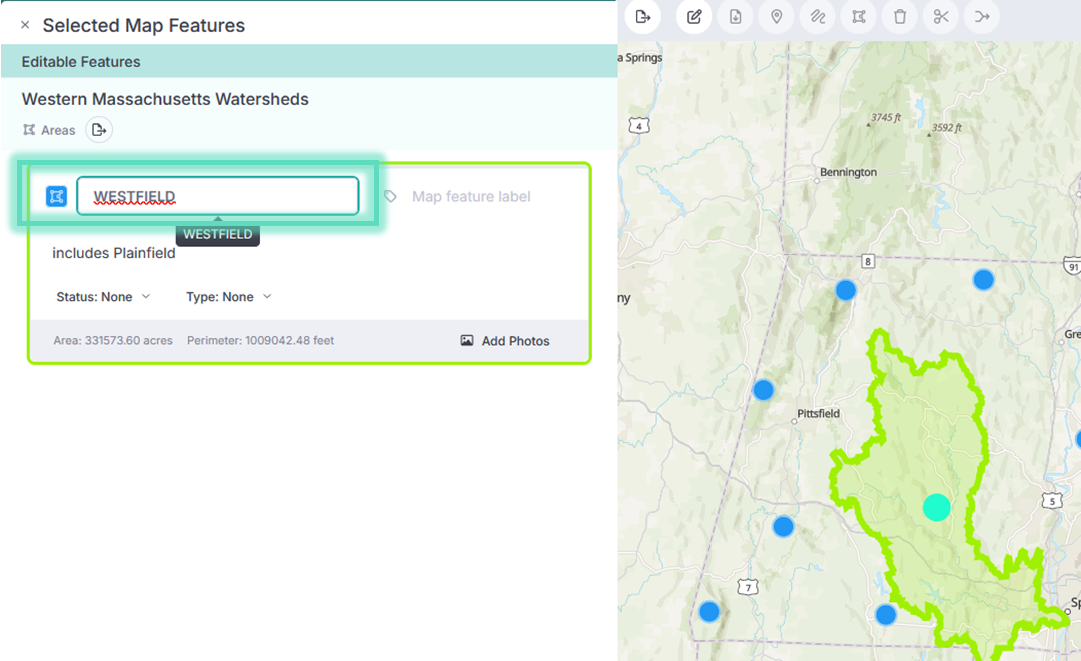
The 'Name' field in your Custom Layer's geography is what you'll use in Step 2 to filter records by this layer. Click on an object within the map to edit this field as necessary so it will be easily identifiable later:
Step 2: Add the Custom Layer as a results field to a View
Let's use the example, "How many violations have we identified in this watershed?"
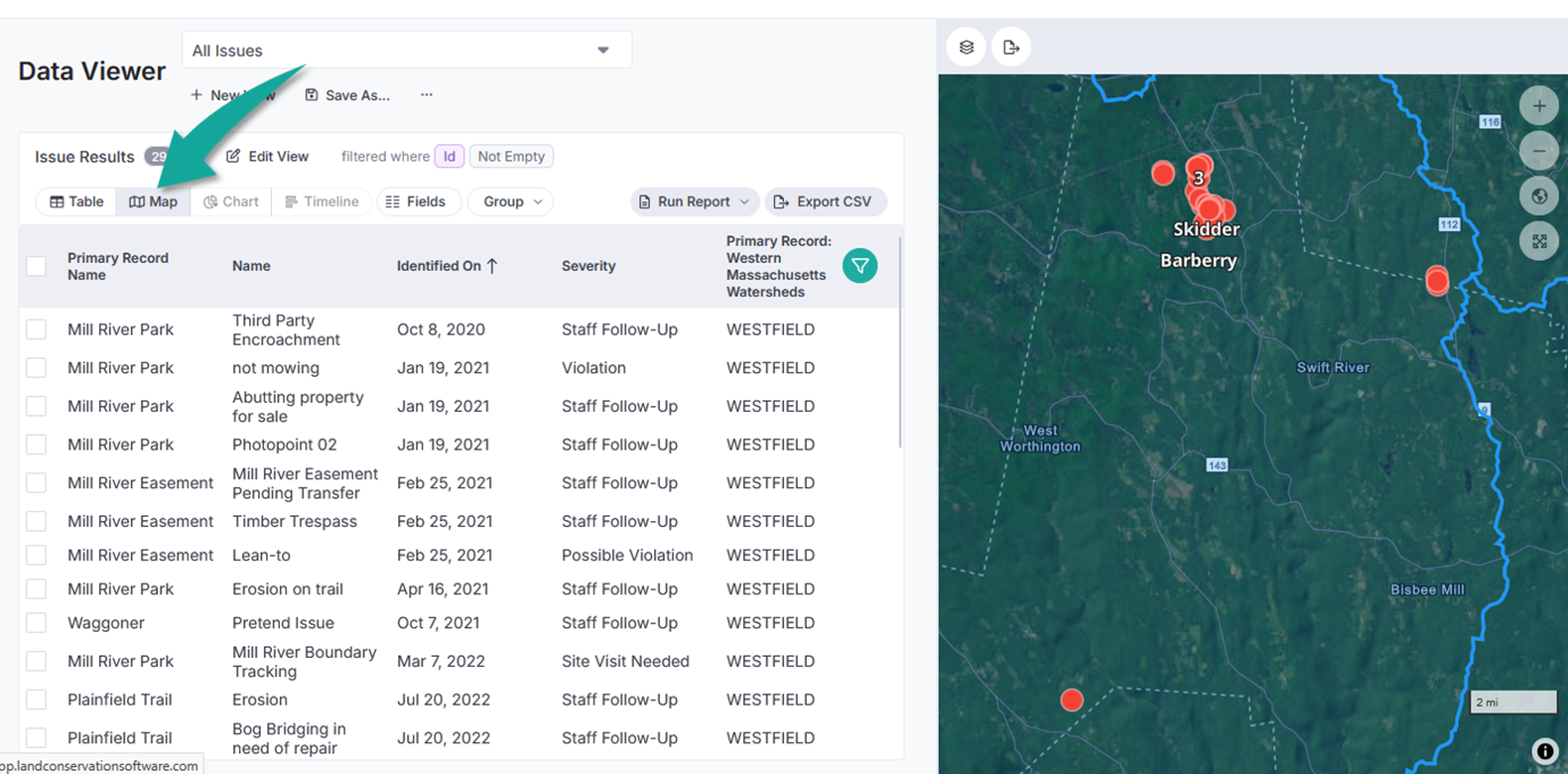
In Data Viewer, go to view of Issues. Open the Field picker and select the name of the Custom Map Layer you created in Step 1, then filter that field for a specific watershed:
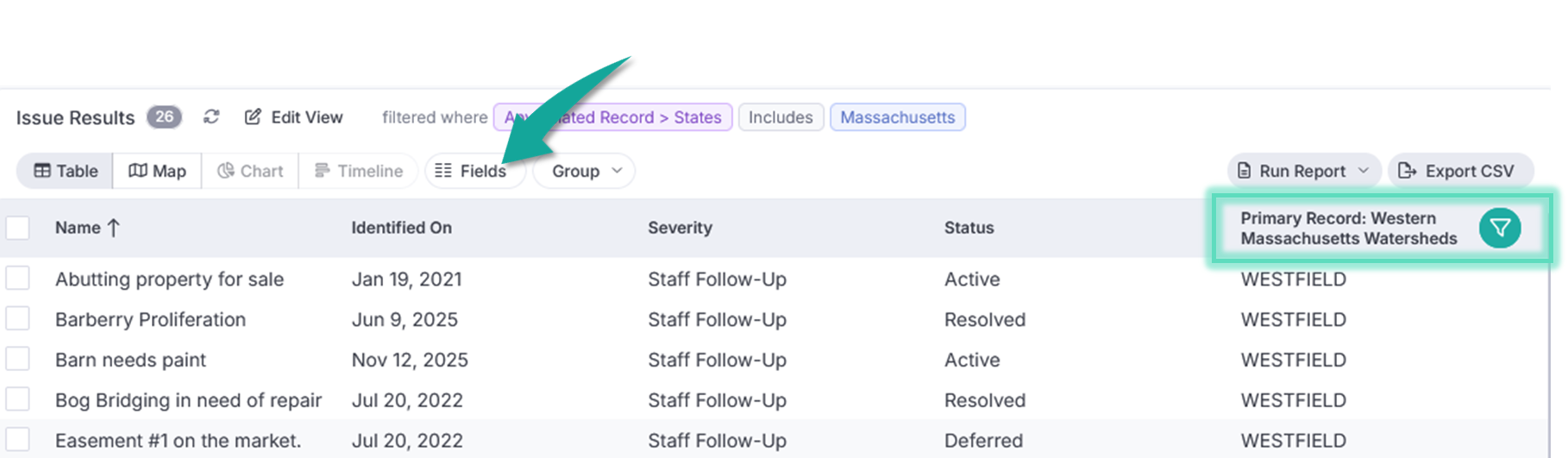
The results will include Issues where the Primary Property Record boundary intersects with the boundary of the specified watershed (from the Custom Layer).
Display your results as a map for visual reference: